App icons: six disguises for your Home Screen
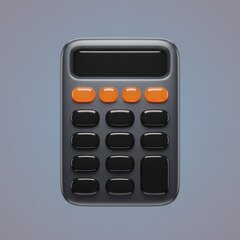
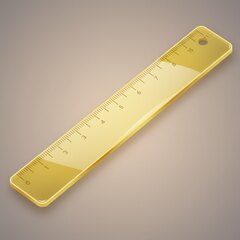
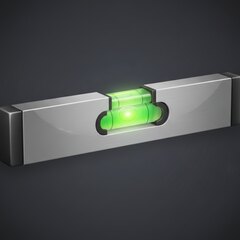
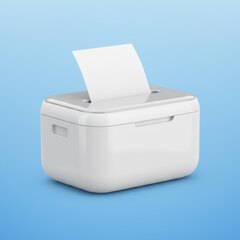
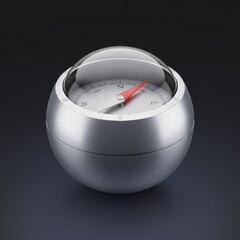
On the paid plan, change Backroom's icon to a calculator, ruler, level, printer, compass or scanner. The name under the icon stays Backroom.
The paid plan lets you swap the icon for a calculator, ruler, level, printer, compass or scanner, or go back to the original. iOS shows its own alert when the icon changes. The name under the icon stays Backroom, and Settings and App Library show that name too, so this is a light disguise.

How to change it
Open a vault, tap Settings, go to the Disguise section and tap the icon you want. iOS confirms with its own alert.
What it does
It makes the app less noticeable on a crowded Home Screen. A ruler in a utilities folder does not catch the eye of someone scrolling for a game, or looking over your shoulder.
What it does not do
The label below still reads Backroom. App Library, Settings, search, your Apple Account’s purchase history and your phone’s storage screen all list that name. An icon protects nothing inside the vault. Your pattern and encryption do that.
If someone is seriously checking your phone, a disguise can make things look worse once it is found, so weigh that. Combine it with hiding the app if you want it out of sight too. Remember a hidden app is listed under Settings, Apps, Hidden Apps.
Frequently asked questions
Why does the name stay Backroom?
iOS lets an app change its icon, but the name under it stays the app's name. Apple's iOS alert also appears when the change happens.
Can I also hide the app?
Yes, with iOS itself. Touch and hold, tap Require Face ID, then tap Hide and Require Face ID. It moves to the Hidden folder in App Library.
Can I use custom icons?
Only the ones built into the app, plus the original.